Control Center SAML Configuration
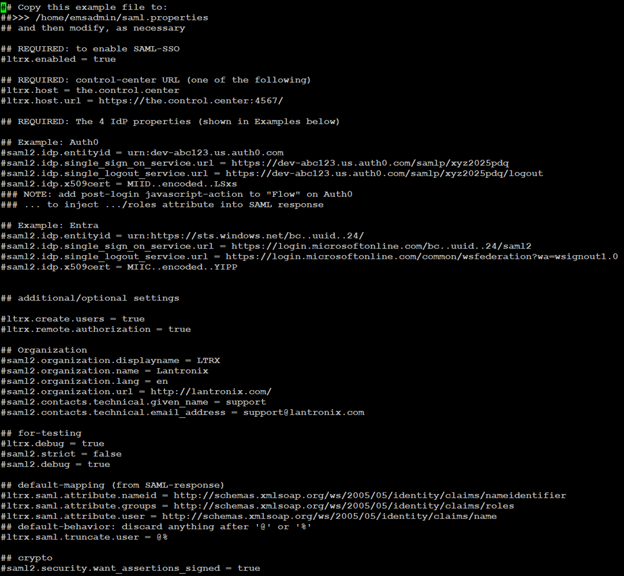
To configure a Lantronix Control Center (CC) to use SAML for user authentication, log into the CC web interface and navigate to Administration > Single Sign-On.
Check the Enable SAML checkbox, enter the Control Center Hostname or IP, and enter the SSO Entity ID, SSO Login URL, SSO Logout URL, and SSO Certificate provided by the Identity Provider (IDP).
Click Save and then click the Restart Control Center button.
The Control Center’s Entity ID (AKD Service Provider metadata) is available on the Control Center GUI at https://<Hostname or IP>/saml/meta (ie: https://sedemo.ltxatx.com/saml/meta)
SAML single sign-on is now enabled on the Control Center.
Settings Override and Troubleshooting
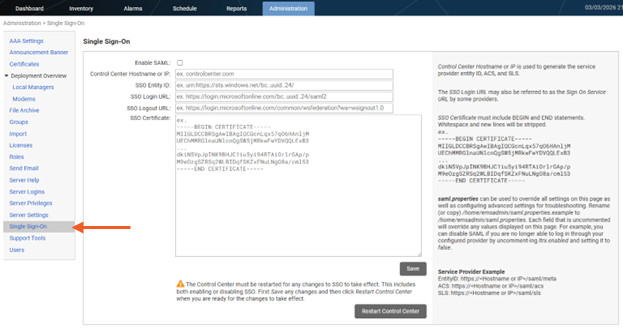
The single sign-on properties can be used to override Single Sign-On (SSO) configuration, which can be useful for turning SAML off or troubleshooting login issues.
The single sign-on properties are available on the CC CLI. SSH or console to the CC using the emsadmin user and then copy the file /home/emsadmin/saml.properties.example to /home/emsadmin/saml.properties.
Edit that file to override the settings on the Single Sign-On page. Each field that is uncommented will override any values displayed on the SSO page.
For example, you can disable SAML if you are no longer able to log in through your configured provider by uncommenting ltrx.enabled and setting it to false.
Example:
[emsadmin@control-center ~]$ cp saml.properties.example saml.properties
[emsadmin@control-center ~]$ vi saml.properties
Troubleshooting
To troubleshoot SAML login issues, uncomment the following lines to increase logging.
Logs are available in the CC GUI under Administration > Support Tools > Download Verbose Logs.
Available Properties