Web Manager UI Customization
You may want to customize the web pages that are served by the built-in web server. There are multiple ways to achieve this, so you need to think about how you want it to look.
You can make the following types of customizations:
- Change the Web Manager brand colors and logo to your specifications
- Add configuration tabs to Web Manager
- Remove configuration tabs from Web Manager
- Create custom web pages (next section)
You can use the existing Lantronix pages and remove certain items while also adding your own items, or you can create your own custom pages that don't use Lantronix HTML/Javascript at all.
This section provides an overview of how to get started with doing both.
Web Manager Default Appearance
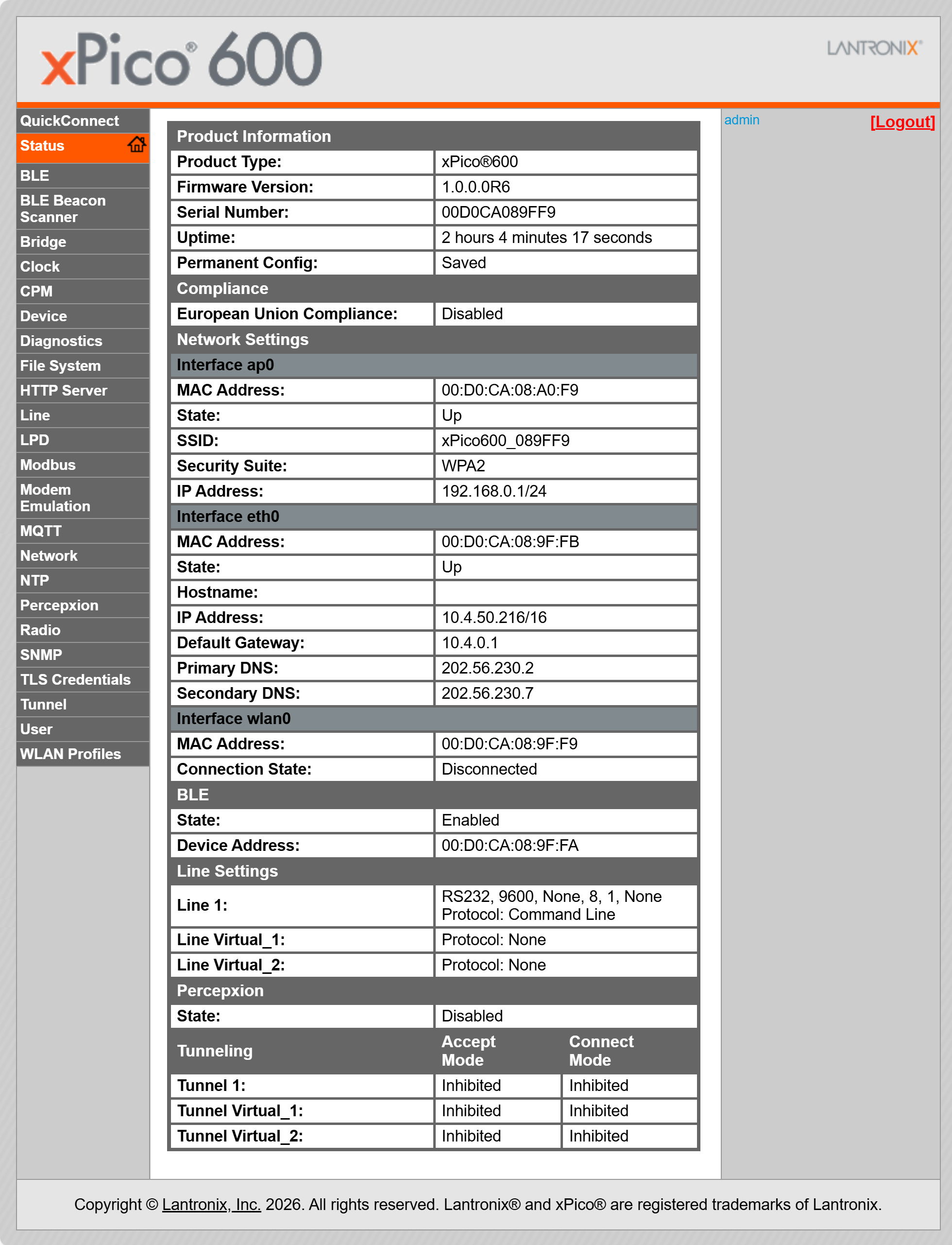
After initial configuration ,the default Web Manager looks like this:
Overriding Files
The HTML, Javascript, and CSS files that make up the default Lantronix web pages are built into the Lantronix firmware. These are called overridable files, in that you can create your own to be served instead of the default ones. The overridable files are:
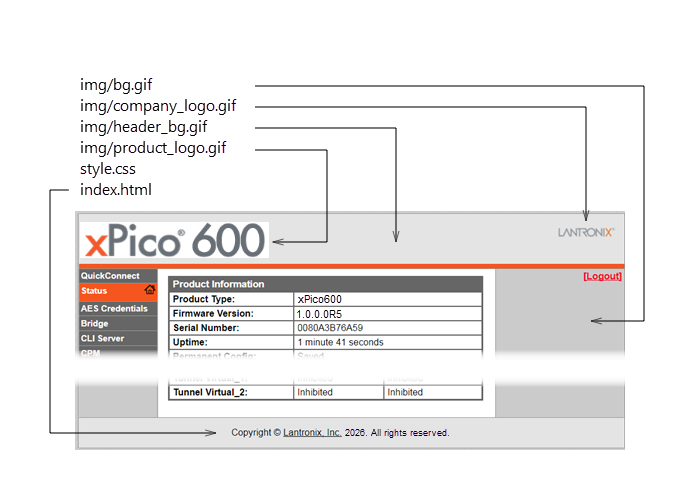
- index.html – Main file controlling text and graphics
- style.css – Style sheet
- img/bg.gif – Main background
- img/company_logo.gif – Company logo in header container
- img/product_logo.gif – Product logo in header container
- img/favicon.ico – Shortcut icon
- img/header_bg.gif – Head container background
If you would like to override a file, place it in the following directory in the filesystem: /main/http/web_manager
You can create the override file from scratch, or you can save as source the Lantronix one and modify it. If you would like to see the source of the Lantronix default page, you can find it in the following directory: /embedded/main/http/web_manager
The following picture shows the effect of the different overridable files:
Removing Configuration Tabs
If you would like to remove tabs from the left-side menu, you can do so by overriding the style.css with your own file that hides the different menus. Copy the default style.css file and set any menus that you want to hide to the display:none; style. For example, to hide the SPI, the style.css would have:
The list of IDs used for each tab is:
- quickconnect_Index
- status_Index
- bridge_Index
- cliserver_Index
- cpm_Index
- clock_Index
- device_Index
- diagnostics_Index
- discovery_Index
- filesystem_Index
- httpserver_Index
- line_Index
- modem_emulation_Index
- monitor_Index
- ntp_Index
- network_Index
- performance_Index
- radio_Index
- spi_Index
- tls_Index
- tunnel_Index
- user_Index
- wlan_profiles_Index
Adding Configuration Tabs
The Lantronix User Data module makes it easy to add tabs with your own data to the existing default pages, without having to redesign all the pages by yourself. This also lets you save your own configuration values that you can get via XML through the usual ways of reading configuration (either serial port or WebAPI).
To add a new tab, follow these steps:
- Create /user_data directory on the filesystem.
- Create /user_data/http directory.
- Create /user_data/http/web directory.
- In the web directory, add a file called user_data_specification.js.
- Go back and create /user_data/http/help directory.
- Put config.Custom.html file into the help directory.
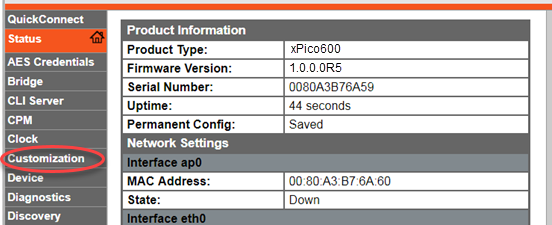
- Reboot your device, notice the new "Customization" tab.
user_data_specification.js:
UserData_RegisterTab(
    {
        name: "Customization",
        page: [
            {
                group:"Alarms",
                item:["Alarm Level","Notify","Severity"],
                checkFormValues: function() {
                    PrintMsg("");
                    var a = UserData_GetValue("Alarm Level");
                    if(a && ! a.match(/^\d+$/)) {
                        PrintMsg("ERROR: Alarm Level must be numeric.\r");
                        return false;
                    }
                    return true;
                }
            },
            {
                group:"Device",
                item:["Serial Number","Rank"]
            }
        ]
    }
);
config.Custom.html file:
<div id="help.config.Custom" style="display:none">
    <p>
        The idea is, user custom configuration values are stored under this group.
    </p>
</div>
<div id="help.config.Custom.Alarms" style="display:none">
    <p>
        The OEM places help for the overall <b>Alarms</b> page here.
    </p>
</div>
<div id="help.config.Custom.Alarms.Alarm Level" style="display:none">
    <p>
        The OEM describes <b>Alarm Level</b> in detail here.
    </p>
</div>
<div id="help.config.Custom.Alarms.Notify" style="display:none">
    <p>
        The OEM describes <b>Notify</b> in detail here.
    </p>
</div>
<div id="help.config.Custom.Alarms.Severity" style="display:none">
    <p>
        The OEM describes <b>Severity</b> in detail here.
    </p>
</div>
<div id="help.config.Custom.Device" style="display:none">
    <p>
        The OEM places help for the overall <b>Device</b> page here.
    </p>
</div>
<div id="help.config.Custom.Device.Serial Number" style="display:none">
    <p>
        The OEM describes <b>Serial Number</b> in detail here.
    </p>
</div>
<div id="help.config.Custom.Device.Rank" style="display:none">
    <p>
        The OEM describes <b>Rank</b> in detail here.
    </p>
</div>
The files above will create the following tab called Customization:
Accessing Your Custom Data
To access your custom configuration data stored when a user enters data in the page above, you can use the standard methods of getting the configuration XML (XCR) data, and look for the "Custom" configuration group.
<configgroup name = "Custom" instance = "Alarms">
    <configitem name = "Item" instance = "Alarm Level">
       <value name = "Value"></value>
    </configitem>
    <configitem name = "Item" instance = "Notify">
       <value name = "Value"></value>
    </configitem>
    <configitem name = "Item" instance = "Severity">
       <value name = "Value"></value>
    </configitem>
</configgroup>