Web Manager
The Web Manager application provides browser-based access to all the features of your embedded gateway. As long as the gateway has an IP address, which means it is connected to the network or connected to your PC or mobile device using SoftAP, you can use Web Manager to access the gateway.
The Web Manager allows you to view status and configure the gateway's applications and interfaces, monitor system functions and activity, and perform device maintenance operations.
You have the ability to customize the Web Manager application to apply your branding via the CSS, hide configuration menus, and add custom web pages. For information on branding and OEM customizations, see OEM Branding and Customization.
Accessing the Web Manager
For first time set up, see Getting Started.
To log into Web Manager
If you know the IP address of the gateway, open a web browser and point to the IP address.
Tip
If you don't know the IP address assigned to the gateway, you can use the Lantronix Provisioning Manager (LPM) application to discover the gateway and learn the IP address. To download LPM, go to https://www.lantronix.com/products/lantronix-provisioning-manager/.
At the gateway's login prompt, enter the user name and password.
The factory default login is the following:
- User Name: admin
- Password: PASSWORD (case sensitive - use uppercase)
Important
Please change the default administrator password to keep your device secure. Go to the User menu to change the administrator password.
It is also recommended that you use OEM settings during manufacturing test to store unique access passwords for each device. See OEM Branding & Customization.
Web Manager Components
When you log in, the Web Manager Status page provides a summary of the gateway, including product information, network and serial settings, and details about applications on the gateway.
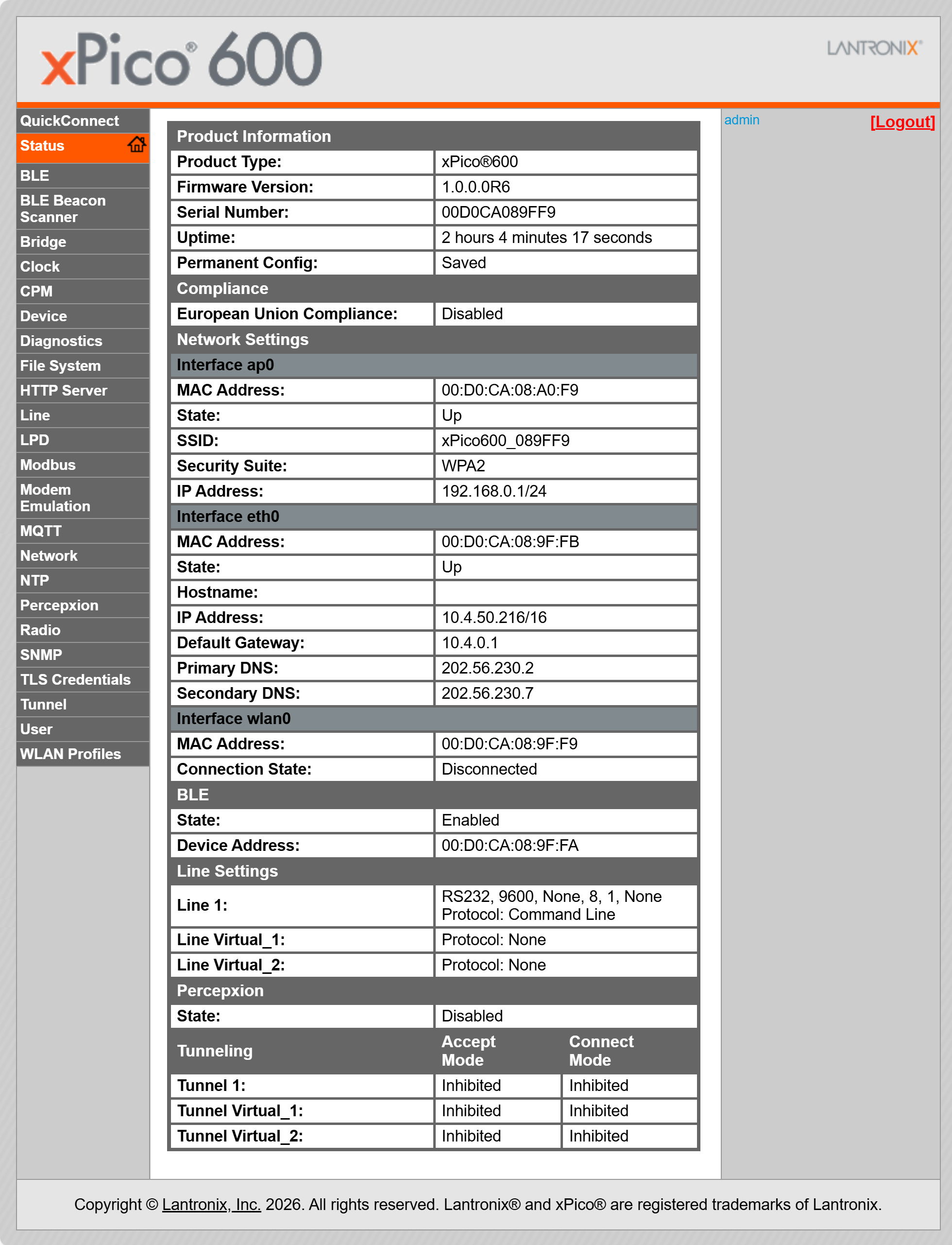
The Web Manager UI displays the configuration menu on the left, the content area in the middle, and the Logout link and context-sensitive help information on the right. The help content displays field-level descriptions when you hover your pointer (mouse) over a specific field in the content area.
Using the Web Manager
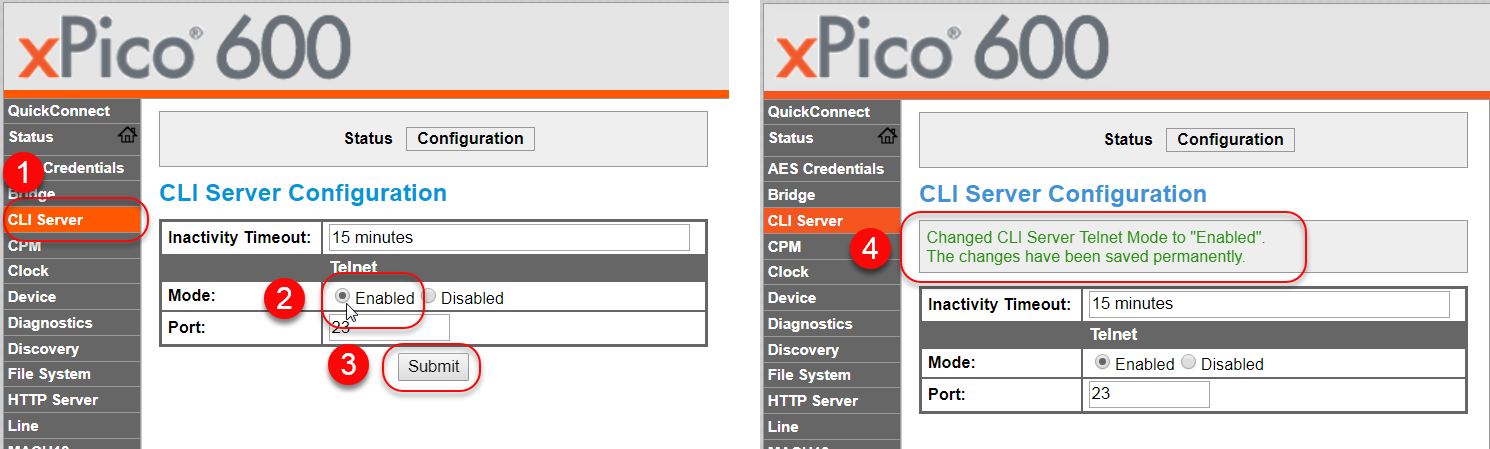
Click a configuration menu on the left to view status and configure the feature. Make the desired change and save the configuration settings. Typically, you must click Submit to save the changes. The Web Manager displays an informational message about the changes that were applied.
Note
All changes that you make through the Web Manager take effect immediately unless otherwise noted. If the configuration requires a reboot, the Web Manager UI will display a message. You should reboot the gateway and wait 20-30 seconds before attempting to make a connection.