Promo Kit
The FOX5 Series Promo Kit contains the accessories and interfaces required to power up the device, connect the device to a PC, and and configure the device.
Promo Kit Contents
Unpack and verify the contents of the Promo Kit.
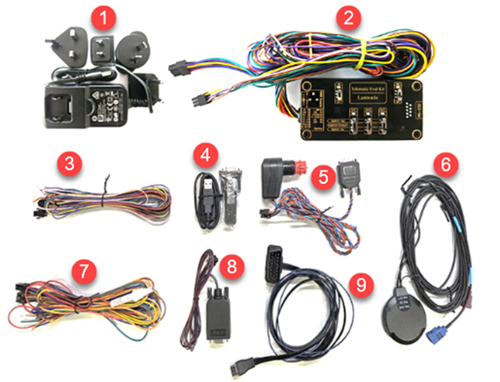
The contents of the Promo Kit are described below:
| # | ACCESSORY |
|---|---|
| 1 | Power Supply 15V including UK/US/AU/EU adapters |
| 2 | Telematic Eval Kit |
| 3 | Accessory port cable. 6-pin (2x3) connector, 4-pin (2x2) UCOM connector for connecting and powering RFID/NFC reader, 1.5m long and 6 open end wires |
| 4 | USB to SERIAL converter and cable |
| 5 | Main port service and power cable with car charger. 8-pin (2x4) connector, RS-232 female connector, 1.5m cable |
| 6 | Combined Cellular/GNSS external antenna |
| 7 | Main port installation cable. 8-pin (2x4) connector, 4-pin (2x2) UCOM connector for connecting and powering RFID/NFC reader, 1.5m long, 2A blade fuse and 6 open end wires |
| 8 | Accessory port service cable. 6-pin (2x3) connector to DB9 serial female socket, 1m long |
| 9 | 8-pin (2x4) connector to OBDII cable with separate IGN wire, 1.5m long |
Powering on the device
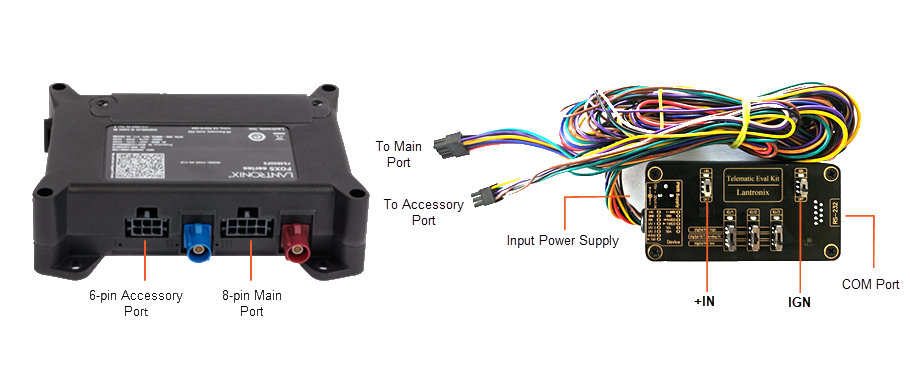
+IN - supplies power to the FOX5 device and Eval Kit.
IGN - wakes up the FOX5 device from IGN sleep mode.
To power on the FOX5 device:
- Set the +IN and IGN switches on the Telematic Eval Kit to OFF position.
- Plug in the 8-pin (2x4) connector of the Telematic Eval Kit to the 8-pin main port on the FOX5 device.
- Plug in the 6-pin (2x3) connector to the 6-pin accessory port on the FOX5 device.
- Insert the power supply cable into the input socket on the Telematic Eval Kit marked INPUT 15.0V ...32.0V DC. Then plug the AC adapter into the wall socket of your mains.
- Set the +IN and the IGN switches on the Telematic Eval Kit to ON position and apply power.
Connecting the device to PC
To connect the FOX5 device to a PC:
- Connect the USB extension cable to the USB to serial converter.
- Plug the serial port of the converter to the COM port of the Telematic Eval Kit.
- Plug the other end of the USB cable to a free USB port on your host computer.
To determine which COM port of your PC is being used by the device, go to Device Manager > Ports and note the USB Serial Port (COMxx).