Workbench
The Lantronix Workbench application provides an interface between your personal computer and your FOX5 device. It allows you to connect to the device, configure and manage it, and collect data for evaluation.
To install Workbench:
- Download the latest version of Workbench application from Lantronix Workbench page.
- Extract the Workbench folder and double-click workbench_win_x64 to launch Workbench.
-
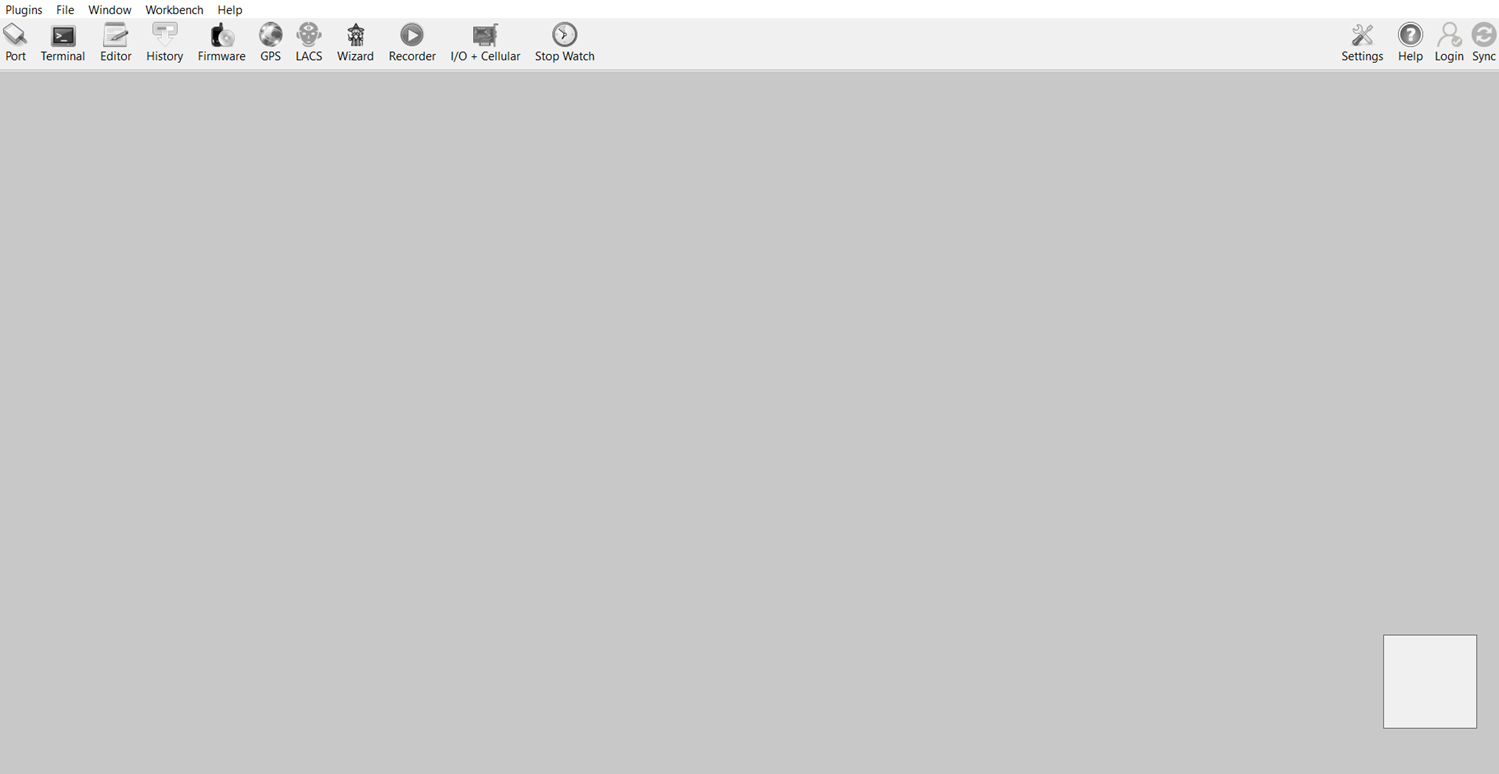
Select Default profile in the Load profile dialog box and click OK. The Workbench Interface displays.
Using Workbench
Connect to the device
To establish a serial connection with the device:
-
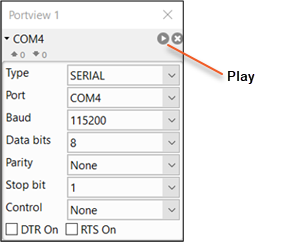
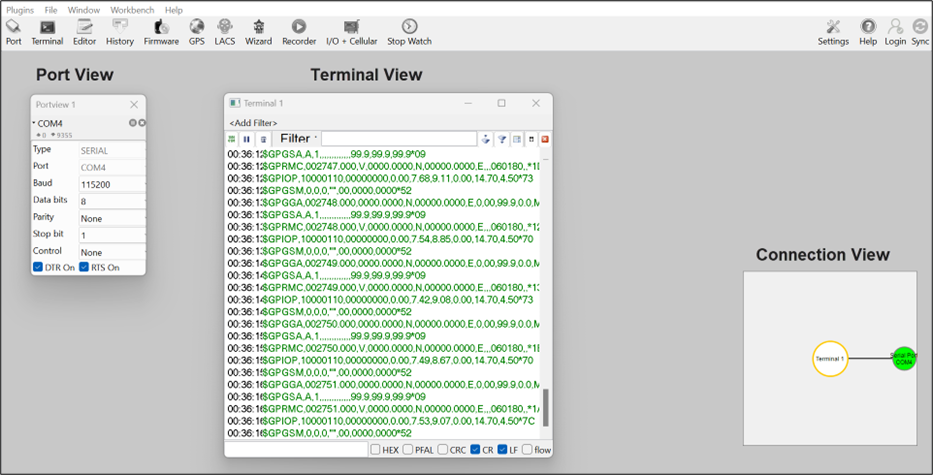
In the Workbench application, click Port, the Portview window displays and the Portview circle displays in the Connection View.
-
Configure the PortView settings as shown below:
- Port type - SERIAL
- Port - Select the port to which the device is connected
- Baud - 115200
- Data bits - 8
- Parity - None
- Stop bit - 1
- Flow Control - None
-
Supply power to the FOX5 device and click the Play icon on Portview. A serial connection is established with the device.
- Click Terminal, the Terminal window displays and the Terminal circle displays in the Connection View.
- Click on the Terminal window to select it.
-
Right-click the Connection View to enlarge it and click the Serial Port circle. The circle turns green establishing a connection between the Terminal and the device. The Terminal window begins to display messages from the device.
Send commands to the device
Use Terminal
The Terminal allows you to send one command at a time and also displays the output of the command.
To send PFAL commands using Terminal:
-
Type the command in the text box at the bottom left corner of the Terminal.

-
Press Enter key, the command and the output is displayed in the Terminal window.
Example:
$PFAL,Cnf.Show - Displays the device configuration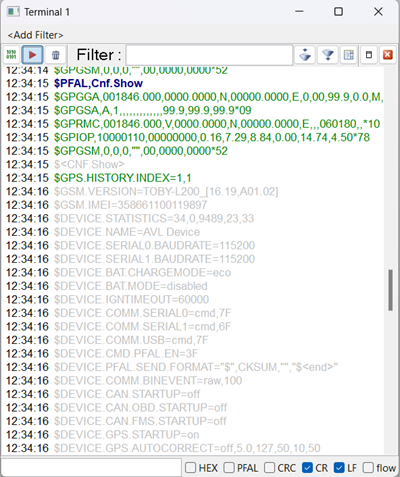
Use Editor
The Editor allows you to send a sequence of commands to the device. It allows you to save the sequence of commands to a configuration file and then upload the file to the device, where the commands are executed.
To send PFAL commands using Editor:
- Click Editor in the Workbench UI, the Editor window displays and the Editor circle displays in the Connection View.
- Click on the Editor window to select it.
-
Right-click the Connection View to enlarge it and click the Serial Port circle. The circle turns green establishing a connection between the Editor and the device.
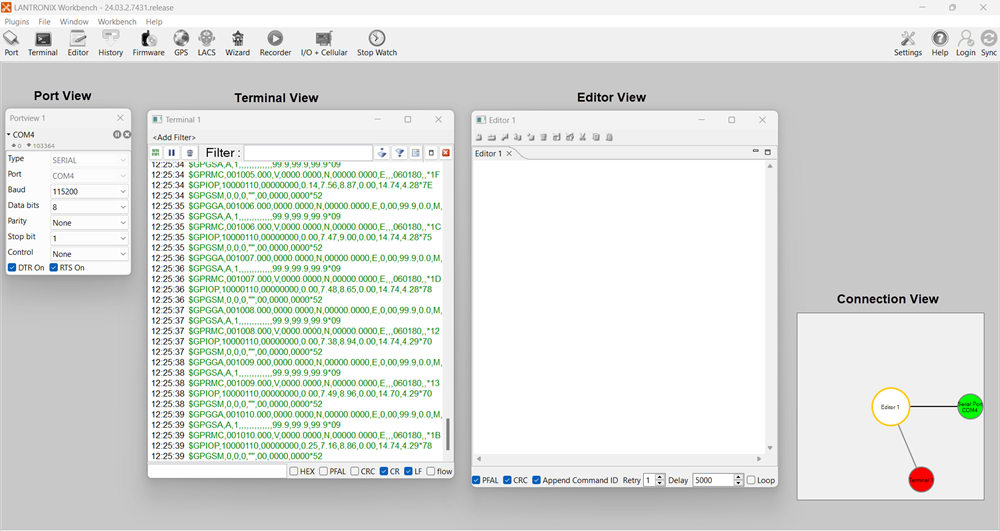
-
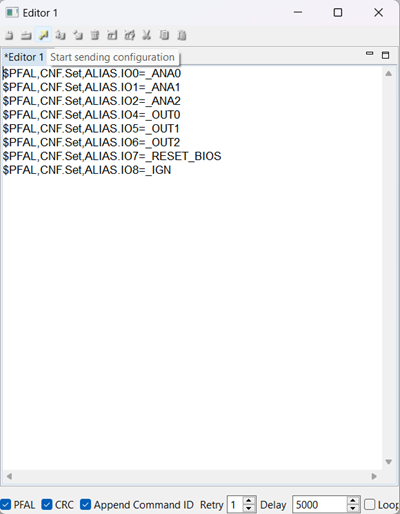
Type the commands in the Editor and click Start sending configuration. The commands are executed sequentially and the output is displayed in the terminal.
For detailed information about the functions of the Terminal, Editor, and other features provided by the Workbench application and how to use them to perform specific functions related to the FOX5 device refer to the Workbench User Guide (see Related Documents)
For information about PFAL commands and their usage refer to the PFAL Command Reference (see Related Documents)
SIM Configuration
Purchase a pre-activated SIM from a network operator. The network operator provides you an APN (with username and password) and a 4-digit PIN, if applicable. Enter the APN details and PIN to register the SIM on the cellular network and establish network connectivity.
To configure the SIM:
- In the Workbench, open the Terminal window.
-
Send the below commands:
-
To enter APN details
$PFAL,Cnf.Set,GPRS.APN=(enter APN provided by network operator) $PFAL,Cnf.Set,PPP.USERNAME=(enter the username provided with the APN) $PFAL,Cnf.Set,PPP.PASSWORD=(enter the password provided with the APN) -
To enter PIN
$PFAL,Cnf.Set,DEVICE.PIN= (enter the PIN of the SIM card)
-
Connecting to Percepxion
Percepxion is a cloud or on-premise portal for the centralized management of Lantronix devices. A browser-based interface that allows an administrator to view status, logs and charts, update firmware and configuration, view and edit telemetry, execute PFAL commands, and monitor Lantronix devices.
To configure your FOX5 device to connect to Percepxion, send the following commands through Workbench:
$PFAL,CNF.Set,PX.CLIENT.CONNECT=1,api.percepxion.ai
$PFAL,CNF.Set,PX.CLIENT.DEVICE_NAME=FOX5
$PFAL,CNF.Set,PX.CLIENT.DEVICE_DESCRIPTION=Default profile
$PFAL,CNF.Set,PX.CLIENT.STATUS_UPDATE_INTERVAL=2
$PFAL,CNF.Set,PX.CLIENT.CONTENT_CHECK_INTERVAL=1
$PFAL,CNF.Set,PX.CLIENT.AUDITLOGS=1